
MCP connector
Your favorite AI assistant now has access to real leads.
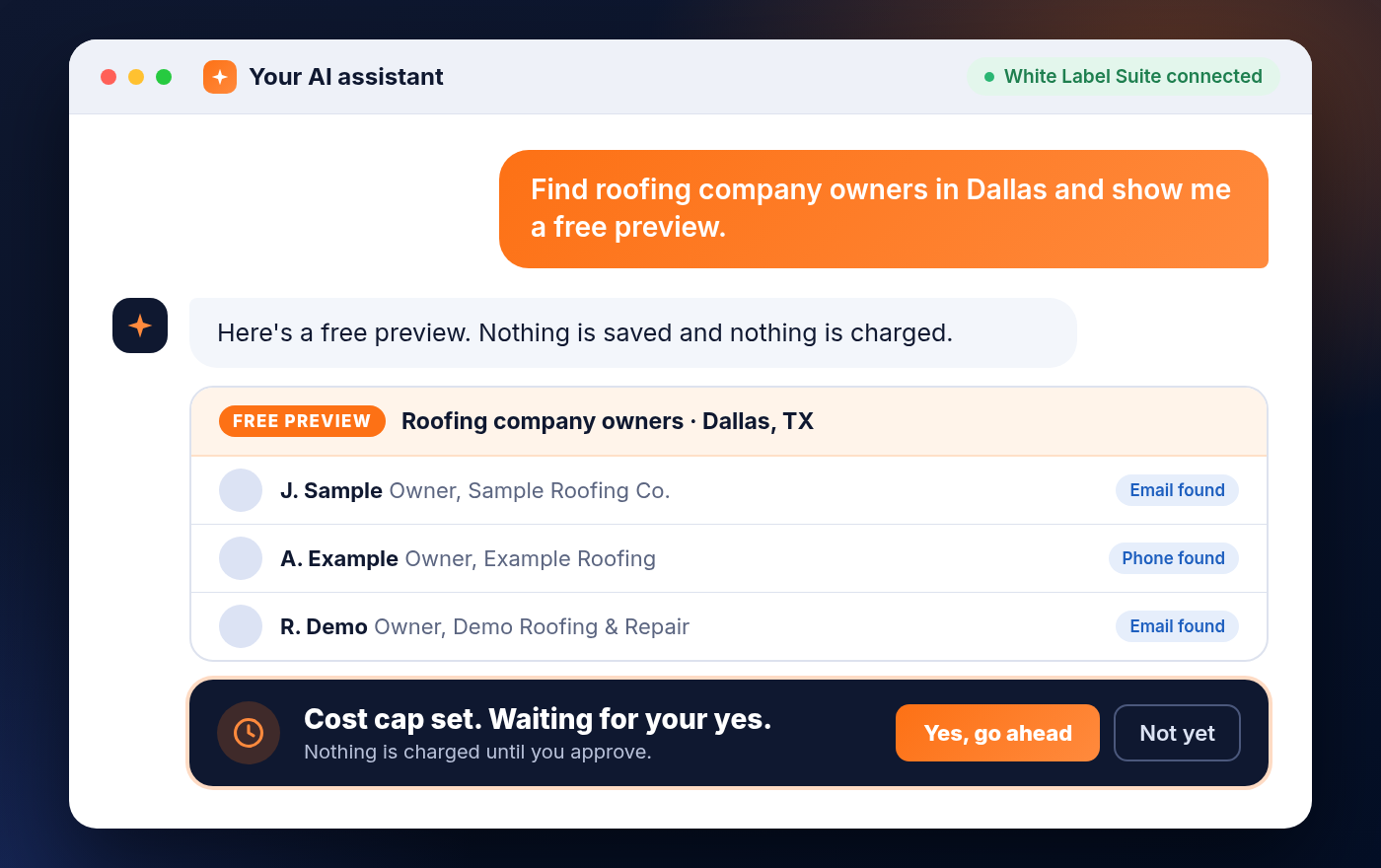
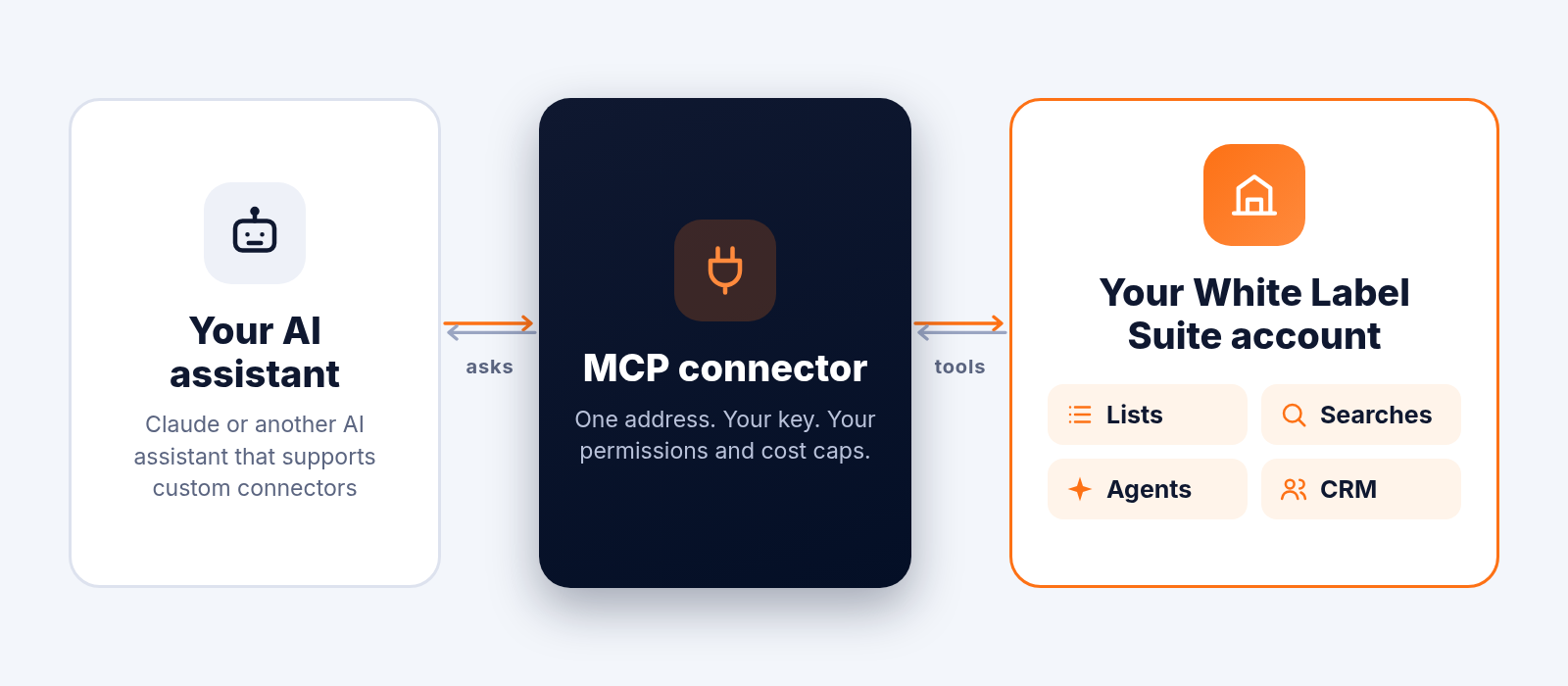
Connect Claude or any AI assistant that supports custom connectors to your White Label Suite account. Tell it who you want to reach. It shows you who it found and what it would cost, then waits for your yes. It can’t spend a dollar you didn’t approve.
- Describe your prospects in plain English
- Preview results free before you spend anything
- Every paid action waits for your cost cap and your yes
- Works in your agency account and your client sub-accounts
Walkthrough
See it in action
Your AI assistant, working inside your account
You’ve probably got an AI assistant open most of the day. It can write a cold email in ten seconds. It has no idea who should get it.
MCP closes that gap. It’s a standard way to hand an AI assistant a set of tools. Connect White Label Suite and your AI assistant can check your lists, run searches, enrich contacts, build AI agents and send leads to your CRM without leaving the conversation.
You don’t need to know every filter or keyword. Say who you’re after. The AI assistant suggests the search, shows you the results and the cost, and stops until you answer.
Everything runs through your account. The contacts come from White Label Suite, not from the AI assistant’s imagination, and they land in your lists.
Connect it in about five minutes
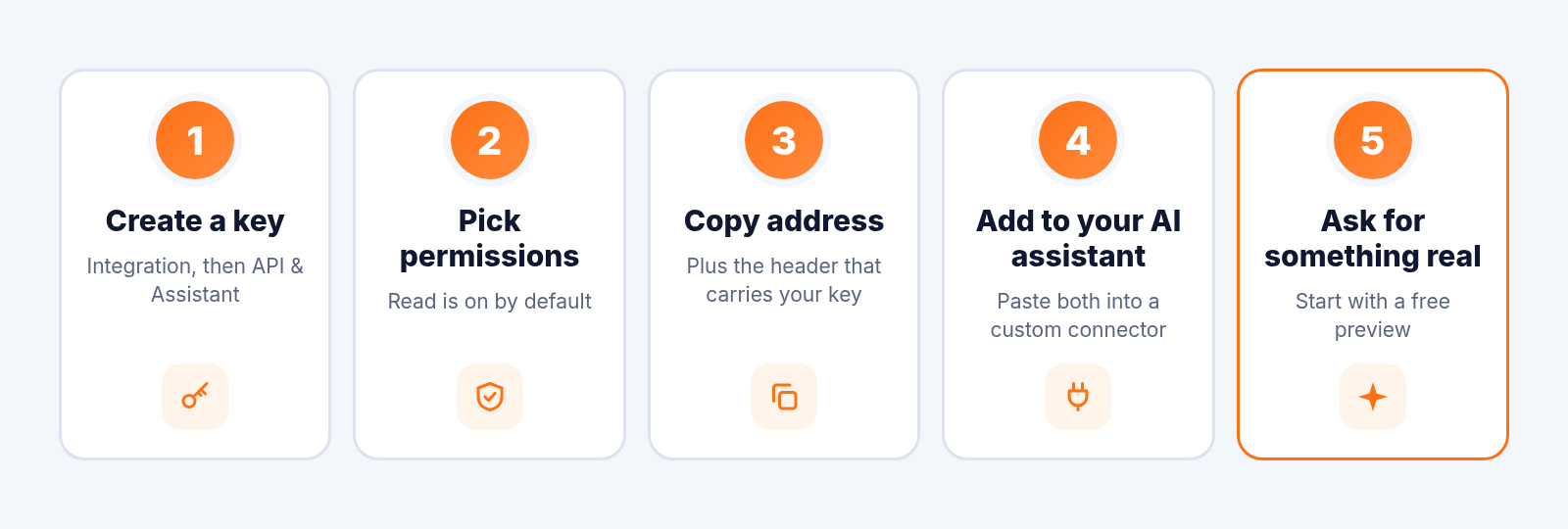
Every AI assistant follows the same pattern: create a key, copy an address, paste both in.
- 1
Create a key
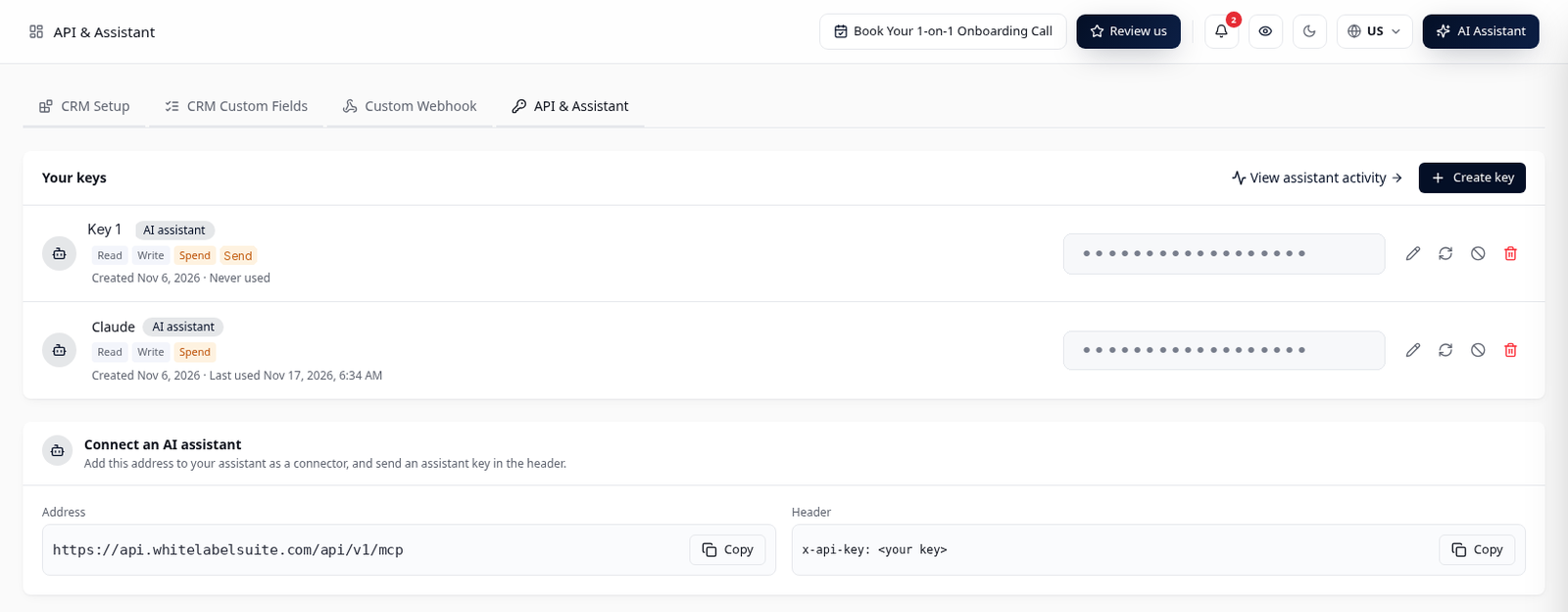
In White Label Suite, open your profile menu, go to Integration, then the API & Assistant tab. Click Create key, name it after the AI assistant (say, “Claude”) and choose “An AI assistant”.
- 2
Pick what it can do
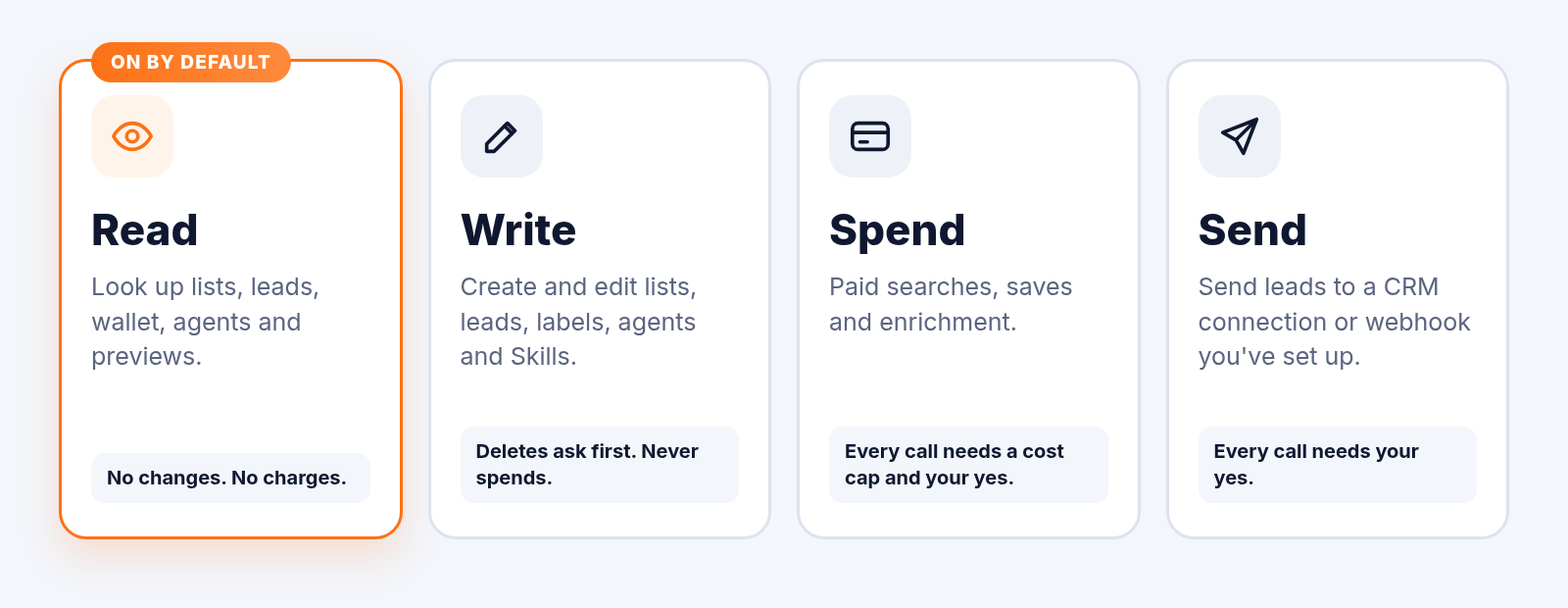
Read is on by default. It can look things up and can’t change or charge anything. Turn on Write, Spend or Send when you’re ready.
- 3
Copy the address and header
The key card shows the connector address and a header carrying your key. Copy both.
https://api.whitelabelsuite.com/api/v1/mcp - 4
Add it to your AI assistant
Add the address as a custom connector and send your key in the x-api-key header. (Authorization: Bearer works too.)
- 5
Ask for something real
“Find 50 roofing company owners in Dallas and show me a preview.”
In Claude
Add a custom connector, paste the address, choose No sign-in, and add your key as the x-api-key request header.
In Claude Code
Run /plugin install leadfndr --marketplace Lead-Fndr/leadfndr-plugin, then paste your AI assistant key when asked.
In other AI assistants
If your AI assistant lets you add a custom MCP connector with a header, use the same address and key. Each app puts that setting somewhere different, so check its connector settings.
Tip: make one key per AI assistant. Then you can switch any one of them off without touching the others.
What your AI assistant can do
More than 90 tools sit behind one connector. In plain terms:
Look things up
Wallet balance, usage, dashboard numbers, lists, leads, labels, agents, Skills and recent searches. Try: “How many leads did I generate this month, and how many have a phone number?”
Preview before you pay
People, local business and company searches preview free. Nothing is saved and nothing is charged. Property searches give you a free match count and estimate first.
Run paid searches and enrich
Domain email, influencer, buyer intent and property searches. Save leads to a list, enrich one contact, or enrich up to 100 at once. Each one needs a cost cap and your yes.
Organize your lists
Create and rename lists, move up to 500 leads at a time, edit contacts, and add or remove labels.
Build and run AI agents
Describe the agent you want. Your AI assistant builds it as a draft, adds the trigger, then adds steps like Filter, Enrich, Skills, Send to CRM and If/Else. When you’re happy, it sets the agent live. It can also run one page of results right now, under a cap.
Write outreach with your Skills
Create and edit Skills, pull from the AI Library, update your business profile, and write personalized copy for one lead or up to 500. Writing uses your daily generation limit, not your wallet.
Send leads where they need to go
Send up to 500 leads to a CRM connection you’ve already set up, or up to 1,000 to a webhook. Test the connection first. Zapier and Groove can be connected from the chat. For other CRMs, your AI assistant gives you a sign-in link and you finish it in your browser.
Work in client sub-accounts
From an agency account, list your sub-accounts, check their analytics, and run a search, an agent or a send inside one client’s sub-account. That client’s wallet pays, and the activity log shows your agency did it.
What it won’t do: it can’t read stored secrets or keys, create sub-accounts, or edit a live agent. Pause the agent or set it back to draft first.
You set the limits. It can’t go past them.
Four permissions, a cost cap on every paid action, and a log of everything your AI assistant does.
Nothing paid happens without your yes.
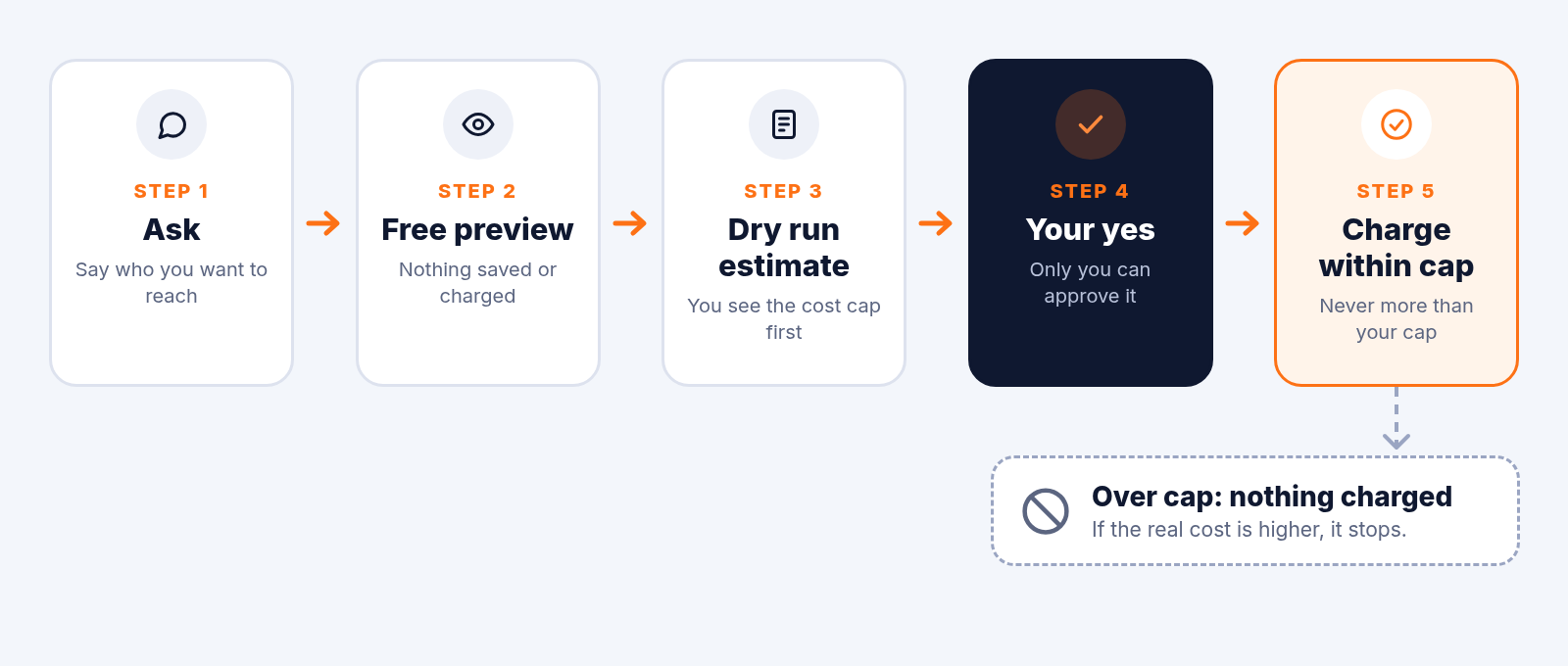
Until you confirm, a paid call is a dry run. You get an estimate and nothing is charged.
Every paid call has a ceiling.
You set the most it can cost. If the real cost comes in higher, nothing is charged.
Deletes ask first.
Deleting a list, lead, label, agent, Skill or webhook, or disconnecting a CRM, waits for you.
Start with Spend off.
While you’re researching, leave it off. Your AI assistant can still preview names and locations, and it has no way to run a search that charges you.
See everything it did.
Open View assistant activity for a record of every call, including reads, dry runs and refusals. Filter by key, type and result. You’ll see total calls, paid calls, blocked calls and the amount spent.
Your keys, your call.
Copy, edit, rotate, disable or delete a key any time. Stored secrets never come back through the connector.
What agencies do with it
Ideas built from what the connector does today.
Lead-gen agencies
Have your AI assistant build a daily local-search agent for the businesses you target, then report each morning: leads in, how many have contact details, how many reached your CRM. When an area runs dry, ask it to set up the same agent in a new city. No resetting filters by hand.
Cold email agencies
Check a big list before you buy it. Have the AI assistant preview people, look at their profiles and screen out the wrong kinds of companies, the way you’d add negative keywords to an ad campaign. Enrich the keepers and push them to your outreach tool through Zapier or a webhook.
Home service clients (roofing, plumbing and the like)
“Roofing company owners in Dallas.” Free preview, save the ones you want, enrich under a cap, move them to the client’s list and label the campaign.
Real estate and mortgage clients
Get a free property match count first. Run the paid search once the filters look right. Buyer intent searches work the same way: preview, estimate, cap, yes.
Agency owners with a client book
Ask for a rundown of your sub-accounts and their activity, then run a search, agent or send inside one client’s sub-account, billed to that client’s wallet.
Anyone who lives in their AI assistant
Skip the extra tab. Ask who you should be searching for and let the AI assistant suggest the filters.
A tip for client work: if you work across several clients from one AI assistant, name the sub-account at the start of each request, and consider a Skill that names that account. For ongoing client work, the built-in AI Agents are usually the better fit.
Works with the AI assistant you already use
One address and one key. That’s all any of them need.
Claude
Add White Label Suite as a custom connector in Claude, or install the plugin in Claude Code.
Other AI assistants
Any AI assistant that supports custom MCP connectors with an API key header can use the same address and key.
Your own app
Building your own tool? Create a key for “Your own integration” for full access to our API. It’s built for Zapier, scripts and the tools you connect.
How setup works todayYou create a key and paste it in. That’s the whole setup.
Frequently asked questions
What is MCP?
Model Context Protocol. It’s a standard way for an AI assistant to use a tool. Connect White Label Suite and your AI assistant can work in your account through plain conversation.
Do I need to code?
No. You paste an address and a key into your AI assistant. Code only comes in if you’re building your own integration.
Can my AI assistant spend money without asking?
No. Paid searches, saves, enrichment, agent runs and sends need the right permission, a cost cap and your confirmation. Without your confirmation, it’s a dry run with an estimate.
What if the cost goes over my cap?
Nothing is charged.
Can it delete my data?
Only with Write access, and every delete or disconnect still waits for your confirmation.
What should I turn on first?
Read only. Add Write, Spend or Send when you want your AI assistant to do more. You can change permissions later.
Does it work with my client sub-accounts?
Yes, from an agency account. Your AI assistant can list your sub-accounts and run a search, agent or send inside one of them. That client’s wallet pays, and your agency shows in the activity log.
Can the AI assistant make up contacts?
AI assistants can get things wrong. That’s why searches run in White Label Suite and you see a preview and a cost before anything is saved. After a big run, check your lists in the app.
Does it replace the built-in AI Agents?
No. Use the connector to set up, run and check work from your AI assistant. For ongoing client work, stick with the built-in AI Agents.
Does it cost extra?
Can I turn it off?
Yes. Disable or delete the key and that AI assistant loses access. One key per AI assistant lets you switch them off one at a time.
Which CRMs can it send to?
Any CRM connection you’ve already set up in White Label Suite, plus any tool you reach through Zapier or a webhook. Zapier and Groove can be connected from the chat. Other CRMs need you to finish a sign-in in your browser.
Give your AI assistant something real to do.
Create a key, start with Read, and ask for your first preview. You decide how far it goes.
Already a customer? Open Integration > API & Assistant. Open the app
Integrates With Your Favorite Tools


WHITE LABEL SUITE VS
FEATURES
CUSTOMER SUCCESS
ABOUT WHITE LABEL SUITE
LEGAL
CORPORATE HQ
10620 Southern Highlands Pkwy
Ste: 110-702
Las Vegas, NV 89141
© Copyright 2026. White Label Suite. All Rights Reserved.
Facebook
Youtube
Instagram
LinkedIn